The goal of this series: by the time build season is in full swing, you can take an idea, model it in CAD, and turn it into a real part, either 3D printed or cut from aluminum. Along the way we'll model the whole robot so everyone on the team can see how it fits together.
Start with this short video. It shows how to log in, where to save your training work, and how to reach the Onshape Learning Center.
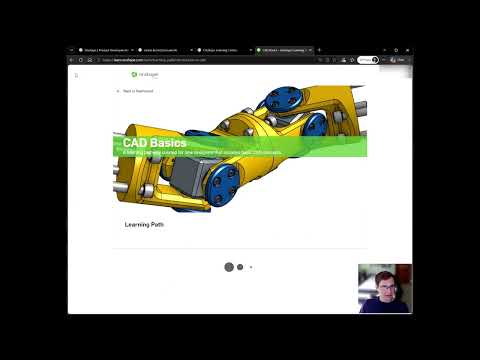 Getting started with Onshape
The learning path on learn.onshape.com. Do the two modules below, in order.
Module 1 · Parametric feature-based CAD
This module explains the core idea behind Onshape and every professional CAD tool: your model is a recipe of features driven by numbers. Change one dimension and the whole part updates. That matters a lot when robot parts have to fit together precisely.
- In the Introduction to CAD path, open Introduction to Parametric Feature-Based CAD.
- Watch every lesson and complete the knowledge checks.
- Mark the module complete.
Parametric means the model is driven by parameters, which are numbers. Change a dimension and everything built on it updates, with no redrawing. That's how teams can change a design quickly.
Module 2 · Introduction to sketching
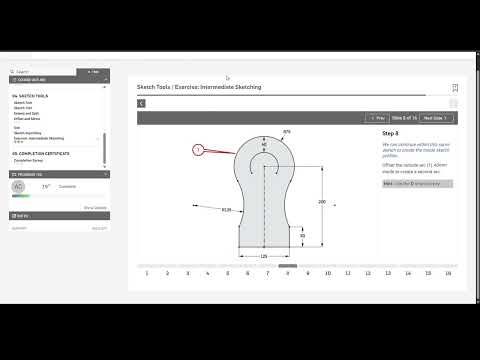
Almost every 3D part starts as a 2D sketch. This module teaches constrained sketching: lines, circles, arcs and dimensions, plus the geometric rules that lock the sketch into the right shape.
- From the same path, open Introduction to Sketching.
- Work through the lessons and do every exercise inside Onshape.
- If you get stuck on the Basic or Intermediate exercise, open its walkthrough below.
A sketch is fully constrained when every line and point is locked by a dimension or a rule such as parallel, perpendicular or tangent. Onshape draws a fully constrained sketch in black. Anything still blue can move, so add constraints before you go on.
It's tempting to drag things roughly into place. An unconstrained sketch will shift the moment you change a dimension later. Lock it down properly from the start.
Walkthroughs
Try each exercise yourself first. Open a walkthrough only when you're really stuck.
Basic sketchingWalkthrough
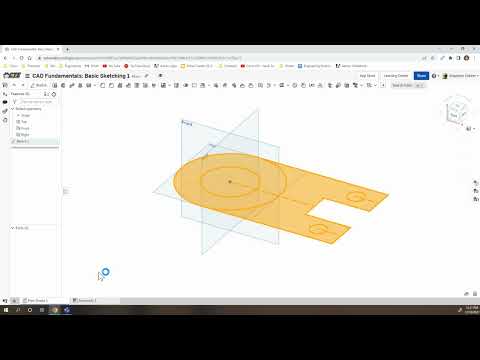
Intermediate sketchingWalkthrough